
Facebook Marketplace listing generator from a photo
Vintapp, an iPhone app, turns one photo of a clothing item into a Marketplace listing: a title, a description, a suggested price and extra photos. You paste it into Facebook, check it, and you’re the one who publishes it.

For iPhone. Your first listing is free, no card required.
How it works
- Photograph your item. Lay it flat, fully in the frame, in daylight, or pick a photo from your library. Shoot the label and any flaws too: on Marketplace, your own photos are what show buyers the item’s condition.
- Vintapp writes the listing. The app identifies the type of item, its color and material, plus the brand, size and condition when the photo shows them, then writes a title, a description and a suggested price, which is only an estimate. It can get things wrong: you check and correct.
- Save, copy, paste. Save the photos to your iPhone’s Photos app and copy your listing. Then open Marketplace in the Facebook app and paste it in. Vintapp has no access to your Facebook account: nothing is filled in or published for you.
What Facebook Marketplace asks of you
- A photo that clearly shows the item and its condition and, if possible, several original photos of the item rather than a photo from a company website.
- A detailed description of the item and its condition, including any stains or tears.
- No counterfeits: knockoffs and replicas of branded goods aren’t allowed on Marketplace, and Facebook’s Commerce Policies don’t allow misleading commerce content.
- Marketplace is intended for consumer-to-consumer sales. In the European Economic Area, businesses and people selling in a commercial capacity may face restrictions, up to losing access to Marketplace.
- No more than 20 new listings per calendar month in total. Every listing you create counts, even if you delete it; the limit resets on the first day of each month.
- For a local pickup, Facebook suggests agreeing on the price and the exact pickup location, and letting the buyer look over the item before you accept payment.
Post your listing on Facebook Marketplace
- In the Facebook app, tap Menu, then Marketplace (or See more if you don’t see it). Tap Sell at the top, then Create listing.
- Choose the type of listing: for clothing, an item for sale.
- Tap Add photos and pick them from your camera roll: your own photos first, then Vintapp’s styles.
- Enter the info about your item: paste the title and the description, and type in your price.
- Tap More listing options to add details and choose a category. If you like, select more places to list it, such as buy and sell groups or your Facebook profile.
- Tap Publish: you’re the one who puts the listing live.
One photo, two results
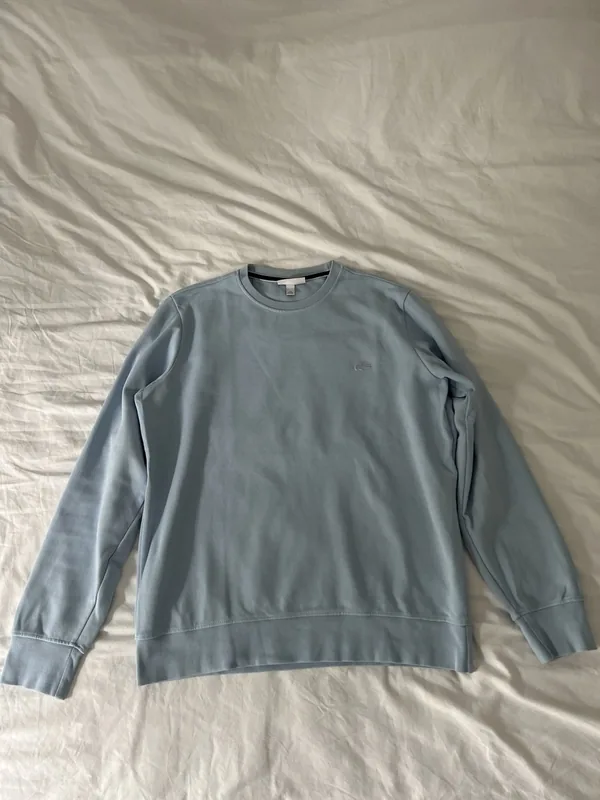
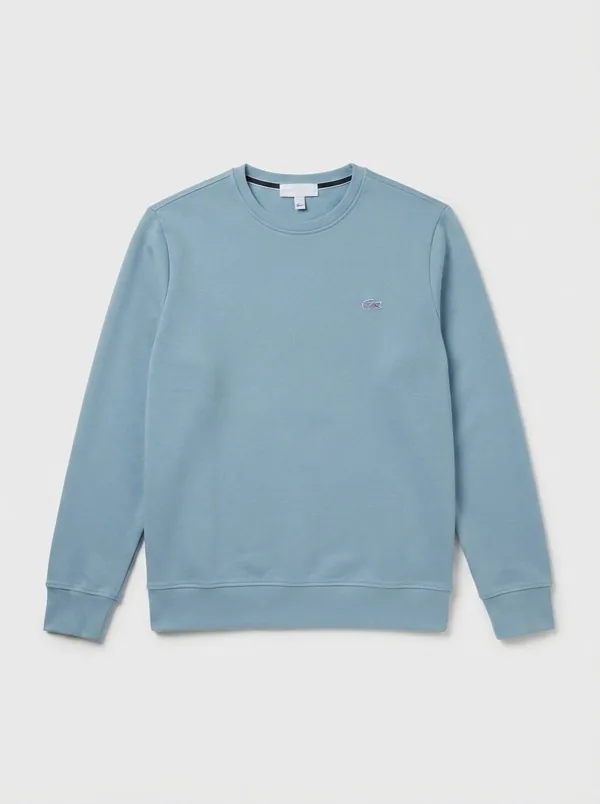
Like the model photos, “Enhance” is generated by AI: the app tells you before any generated image is created. “Cutout” and “Backdrop” keep the pixels of your photo.
What Vintapp prepares for Marketplace
- A title: the type of item, its color, its material and the brand when it’s visible, in the words buyers type into Marketplace search.
- A description: the fit, the material, the visible details and the condition. Add any stains or tears the photo doesn’t show: Facebook suggests describing them.
- A suggested price: an estimate, to compare with similar items on Marketplace before you set yours.
- Extra photos: nine styles. Generated by AI, with up to three angles each: a female model, a male model or your own, a bust, a hanger, folded like in a store, and “Enhance”. Made on your iPhone from your own photo, keeping its pixels: “Cutout” and “Backdrop”.
Tips for a Marketplace listing that sells
- Lead with a real photo of the whole item, then the label and any flaws; Vintapp’s styles come after, as extras.
- Wash the item before you photograph it: Facebook suggests making used clothing and shoes as clean as possible.
- Double-check the brand, size and condition before you publish: the app can’t always read them from the photo, and the buyer will look the item over before paying.
- If you sell a lot, keep the limit on new listings per month in mind: a listing you delete and create again counts twice.
- Before settling on a price, look at similar items on Marketplace.
Frequently asked questions
Does Vintapp post my listing on Facebook Marketplace?
No. Vintapp isn’t a partner of any selling platform and isn’t connected to your Facebook account: no sign-in, no form filled in for you, no messages sent. You copy the listing, save the photos and publish it yourself.
Are model photos allowed on Marketplace?
Facebook suggests a photo that clearly shows the item and its condition and, if possible, several original photos of the item rather than one from a company website. Its rules can change: keep your own photos at the top of the listing, and only add a style that faithfully shows the same piece. The app tells you before any generated image is created; “Cutout” and “Backdrop” keep the pixels of your photo.
Can I share the listing in groups too?
Yes. When you create the listing, Facebook lets you select more places to list it, such as buy and sell groups or your profile. Your Vintapp listing stays the same: you choose where it appears in Facebook.
Is the listing generator free?
Your first complete listing, photos included, is free, once per device and per account, with no card required. After that, it’s a subscription sold and managed by Apple, which you can cancel whenever you like from your Apple account.
What about Android?
Vintapp is an iPhone app, for iOS 17 or later. There’s no Android version.
Your next Marketplace listing starts with a photo.
For iPhone. Your first listing is free, no card required.