
eBay listing generator for clothes, from a photo
One photo of your item is enough: Vintapp writes the title, the description and a suggested price, and creates the photos. You copy your listing into the eBay app, adjust it, and you’re the one who lists it.

For iPhone. Your first listing is free, no card required.
How it works
- Take the photo. Lay the item flat, fully in the frame, in daylight. Or pick a photo from your library.
- Vintapp writes the listing and creates the photos. The app identifies the type of item, its color and material, plus the brand, size and condition when they show in the photo, then writes the title, the description and a suggested price. For photos, nine styles to choose from: a female model, a male model or your own, a bust, a hanger, folded like in a store, and “Enhance”, generated by AI with up to three angles each; “Cutout” and “Backdrop”, made on your iPhone from your own photo, without generative AI.
- Copy, save, paste. Copy the title, the description and the price, save the photos to your iPhone’s Photos app, then create the listing in the eBay app and paste. Vintapp never connects to your eBay account and never lists anything for you.
What eBay asks of you
- At least one photo that is 500 pixels or more on its longest side. The first photo you add is the main photo shown next to your title in search results, and it should show the whole item face-on.
- eBay’s picture policy doesn’t allow photos that don’t accurately represent the item, stock photos for used items, or photos with added borders, text or watermarks. eBay also asks you to show any flaws in clear close-ups.
- A title of up to 80 characters, with the brand, the type of item, the color and the style.
- For used clothing, eBay offers three pre-owned grades: Excellent, Good and Fair. An unworn item with flaws is listed as New with imperfections. The condition you pick must accurately reflect the item.
- eBay has standardized sizes for clothing and shoes: a listing with a missing or unclear size may be hidden until it’s updated.
Post your listing on eBay
- In Vintapp, copy the title, the description and the price, and save the photos you picked to your iPhone’s Photos app.
- Open the eBay app, go to the Selling page and select List an item.
- Tell eBay what you’re selling: type a few words from your title, pick a matching product or continue without a match, then choose the condition.
- Add your photos, with your real photo of the item first, then paste the title and fill in the item specifics: brand, size, color, material.
- Paste the description, choose an auction or a fixed price, and set your price starting from Vintapp’s estimate.
- Set your shipping and returns, preview the listing, then select List it.
One photo, two results
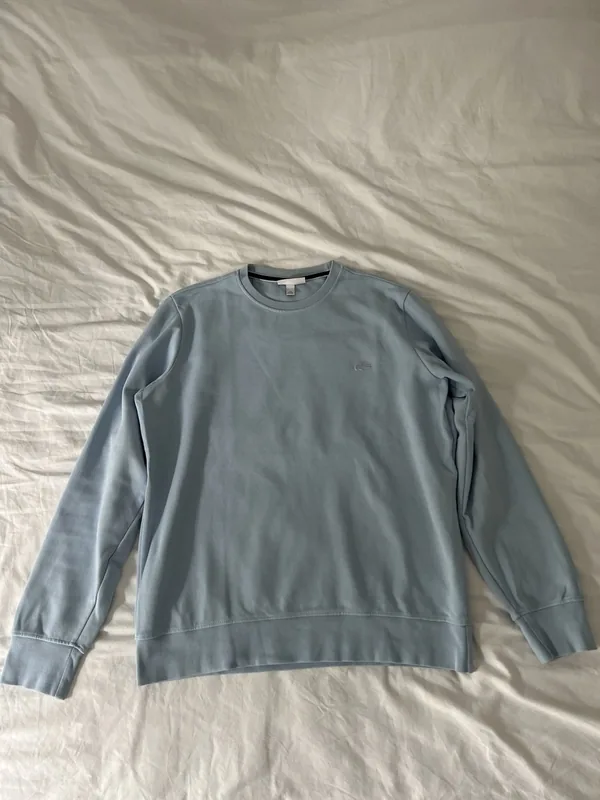
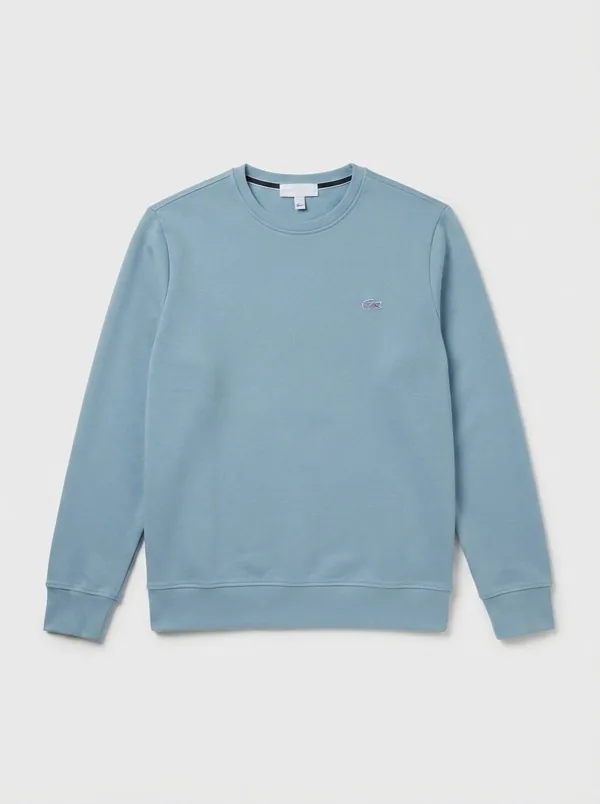
Like the model photos, “Enhance” is generated by AI: the app tells you before any generated image is created. “Cutout” and “Backdrop” keep the pixels of your photo.
What Vintapp prepares for your eBay listing
- The title: the type of item, its color, its material and the brand when it’s visible. eBay gives you up to 80 characters, so check the title before you paste it.
- The description: the fit, the material, the visible details and the condition, in an easy-to-read list you paste into eBay’s description field.
- A suggested price: an estimate, which you adjust. On eBay, you then choose between an auction and a fixed price (Buy It Now).
- The item specifics: brand, size, color, material and condition, ready to enter in eBay’s item specifics and condition fields.
Tips for an eBay listing that sells
- Shoot in daylight, without flash, with the whole item in the frame and nothing else around it.
- Put your real photo first, followed by close-ups of the label, the details and any flaws. The photos Vintapp creates come after, as extras.
- “Cutout” and “Backdrop” keep the pixels of your photo. The model photos and “Enhance” are generated by AI, and the app tells you before it creates each image.
- Double-check the brand and the size against the label: the app can’t always read them from the photo.
- Before settling on a price, look at similar items that have already sold.
Frequently asked questions
Does Vintapp post my listing on eBay?
No. Vintapp isn’t connected to eBay: it doesn’t sign in to your account, doesn’t fill in any form for you and sends no messages. You copy your listing, save the photos, and you list the item yourself in the eBay app. eBay is not a Vintapp partner.
Are model photos allowed on eBay?
eBay’s picture policy doesn’t allow photos that don’t accurately represent the item, or stock photos for used items. So keep your real photos of the item at the front of the listing, and add the photos from Vintapp after them. eBay can change its rules: check its help pages.
Will the title fit eBay’s limit?
eBay accepts up to 80 characters. Read the title over before you paste it, and shorten it if it runs longer.
Is the listing generator free?
Your first complete listing, photos included, is free, once per device and per account, with no card required. After that, it’s a subscription sold and managed by Apple, which you can cancel whenever you like from your Apple account.
What about Android?
Vintapp is an iPhone app, for iOS 17 or later. There’s no Android version.
Your next eBay listing starts with a photo.
For iPhone. Your first listing is free, no card required.